Word to PDF without losing formatting or fonts
By Convertifyy team · · 4 min read
Short answer
To convert Word to PDF without losing formatting, use Save as PDF in Word if you have it, with fonts embedded. If you don’t, Convertifyy Word to PDF converts DOC and DOCX for free and keeps layout, tables, images and Hindi text. The file is converted on our server and deleted straight after.
Word to PDF, free and private
DOC, DOCX to PDF, layout kept. Files deleted right after converting.
Step by step
Step 1Open Word to PDF and add your DOC or DOCX file (up to 25 MB).
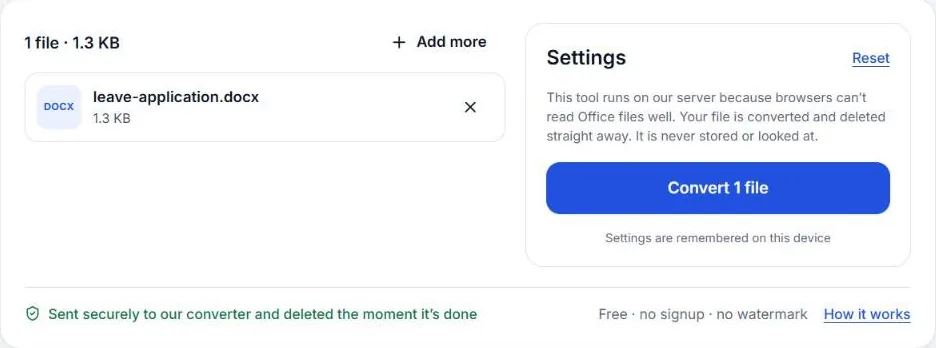
Step 2Press Convert. The converter keeps your layout, tables, images and page breaks; it takes a few seconds.
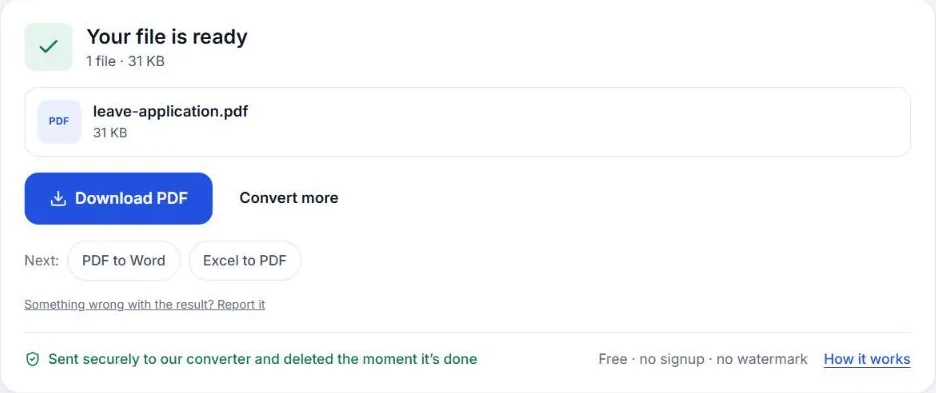
Step 3Download the PDF and check it page by page. Your Word file has already been deleted from our server.
Why formatting breaks
A Word file doesn’t contain finished pages. It contains text and instructions (“this heading in Calibri 16, a table here, new page after this”), and whatever opens the file redraws the pages. If the program converting it doesn’t have the same fonts, it picks a similar one. Even a slightly wider font pushes words to the next line, then tables and page breaks shift.
That’s why a PDF made on one computer can look fine and the same file converted elsewhere can look off.
The best way if you have Word
If Microsoft Word is installed, use it, because it has your fonts:
- File › Save As (or Export) and choose PDF.
- To be safe when sharing the Word file too, turn on File › Options › Save › Embed fonts in the file.
Google Docs users: File › Download › PDF document. It uses Google’s fonts, so stick to fonts available in Docs.
When you don’t have Word
On a phone, a shared computer, or with an old DOC file, use Word to PDF. It converts with LibreOffice and includes:
- Carlito and Caladea, which have the same letter widths as Calibri and Cambria, so text lines up like in Word.
- Liberation fonts, matching Arial, Times New Roman and Courier New.
- Noto fonts for Hindi and other Indian languages, so Devanagari, Tamil, Bengali and more display correctly.
That covers the fonts used in the vast majority of Word documents.
Checklist before you convert
- Use common fonts. Calibri, Arial, Times New Roman and Cambria convert reliably everywhere.
- Avoid text boxes for layout. Use tables or normal paragraphs; text boxes are the most common thing to shift.
- Insert pictures “in line with text” rather than floating, so they stay where you put them.
- Add manual page breaks (Ctrl Enter) where a page must end, instead of pressing Enter many times.
- Check the PDF page by page. Especially the last lines of each page and tables that cross pages.
Making the PDF smaller
PDFs from Word are usually small. If yours has many photos and a form limits the size, run it through Compress PDF with a target size.
Going the other way
Need to edit a PDF you received? PDF to Word turns it back into an editable DOCX. Results are best with PDFs that were made from Word in the first place.
What happens to your file
Word files can’t be converted reliably inside a browser, so this tool uses our converter on Google Cloud in Mumbai. The file travels over an encrypted connection, is converted in one go and is deleted the moment the PDF is sent back. We never store it or look at it.
Common problems after converting
- A table spills onto the next page. Shrink the table slightly in Word, or allow the row to break across pages in Table Properties.
- A line moved to the next page. A font was swapped for a slightly wider one. Use Calibri, Arial or Times New Roman for documents you’ll convert elsewhere.
- Images are missing or moved. Floating images were anchored to a paragraph that moved. Set them to “In line with text” and convert again.
- Hindi text shows boxes. The document uses a font only available on your computer. Choose a Unicode font such as Nirmala UI or Noto Sans Devanagari in Word, then convert.
On a phone
Word files sent on WhatsApp or email often need to become a PDF before you can upload them to a portal. Open Word to PDF in your phone’s browser, choose the DOCX from Downloads or the Files app, and download the PDF. You don’t need the Word app installed.
Questions
Why does my PDF look different from my Word file?
Usually a font is missing on the computer doing the conversion, so a similar font is used and lines move. Embedding fonts in Word, or using common fonts, avoids it.
Does it keep Hindi and other Indian scripts?
Yes. The converter has Noto fonts for Devanagari and other Indian scripts installed, so Hindi text shows correctly.
Is it free?
Yes: 20 conversions a day, files up to 25 MB, no watermark and no signup.
Is my document stored?
No. It is converted in one go and deleted the moment the PDF is sent back. We never keep or read it.
Word to PDF, free and private
DOC, DOCX to PDF, layout kept. Files deleted right after converting.