How to open iPhone HEIC photos on Windows
By Convertifyy team · · 4 min read
Short answer
To open iPhone HEIC photos on Windows, either install Microsoft’s HEIF Image Extensions so the Photos app can show them, or convert them to JPG. The quickest fix for sharing is Convertifyy HEIC to JPG: drop the photos in, press Convert and download JPGs that open everywhere. Nothing is uploaded.
HEIC to JPG, free and private
iPhone photos to JPG. Runs in your browser; nothing is uploaded.
Step by step
Step 1Copy the HEIC photos from your iPhone to the computer (cable, iCloud or Google Photos), then open HEIC to JPG.
Step 2Drop the photos or a whole folder on the page. Keep quality at 90, which looks the same as the original.
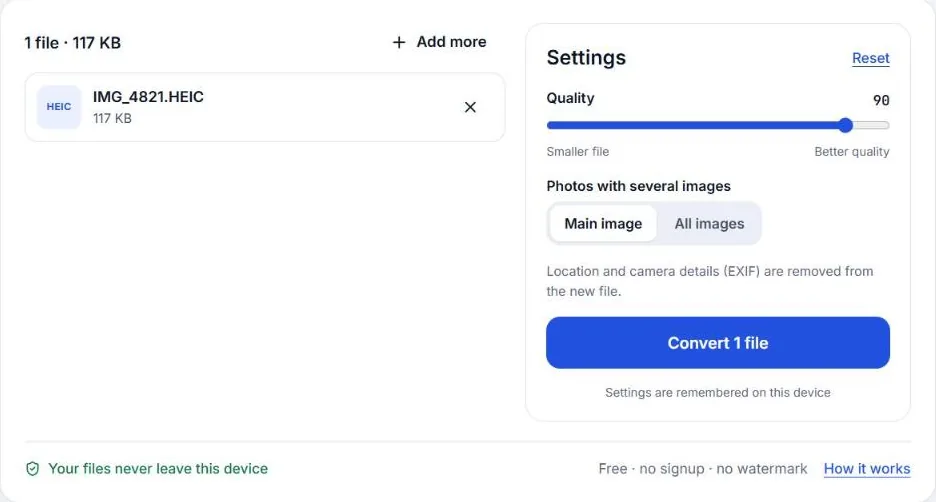
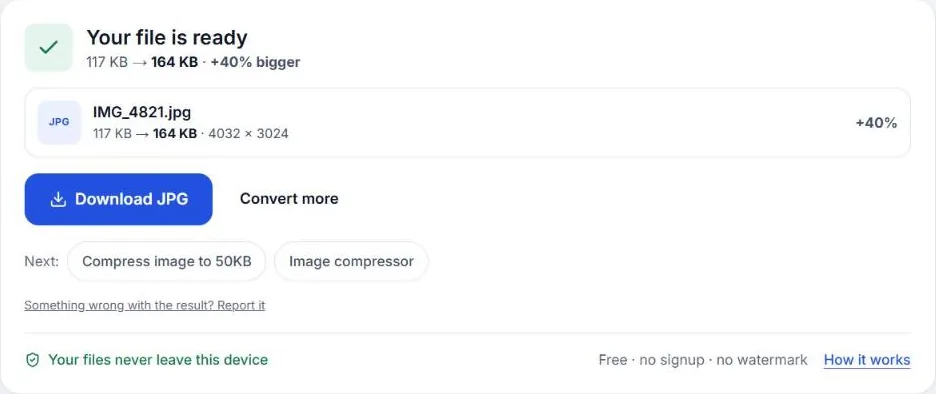
Step 3Press Convert and download the JPGs. Many photos come as one ZIP file.
What HEIC is and why Windows struggles
Since iOS 11, iPhones save photos as HEIC by default. It keeps the same quality as JPG at roughly half the size, which saves space on your phone. The catch: HEIC is built on the HEVC format, and Windows doesn’t include the codec for it out of the box. So you copy your photos to a laptop and see errors, grey boxes or “this file format isn’t supported”.
You have three ways out, depending on what you need.
Option 1: Install the HEIF extension (to view them)
Microsoft offers HEIF Image Extensions in the Microsoft Store. With it, the Windows Photos app and File Explorer thumbnails can show HEIC photos.
- Search the Microsoft Store for HEIF Image Extensions and install it.
- Some PCs also need HEVC Video Extensions for certain photos and Live Photos. Microsoft sells that one, though some PCs come with it already.
This is good for viewing. It doesn’t help when you need to upload the photo to a website, attach it to a form or send it to someone whose device can’t read HEIC.
Option 2: Convert HEIC to JPG (to share and upload)
JPG opens on every device, website and app. Converting is the fix when:
- a government or job portal says “JPG only”;
- you’re putting photos in a Word document or a PDF;
- you’re sending photos to someone on an older Windows PC.
HEIC to JPG converts up to 100 photos at once, inside your browser. It also removes the GPS location from the JPGs, which is safer when you share them.
Option 3: Make your iPhone save JPG
If you move photos to Windows often, change the iPhone setting: Settings › Camera › Formats › Most Compatible. New photos will be saved as JPG. The trade-off is bigger files on your phone.
There’s also a middle way: in Settings › Photos, under “Transfer to Mac or PC”, choose Automatic. When you copy photos with a cable, the iPhone converts them to JPG on the way.
Which option should you pick?
| You want to | Best option |
|---|---|
| Just look at photos on your PC | Install HEIF Image Extensions |
| Upload photos to a form or website | Convert HEIC to JPG |
| Send photos to someone else | Convert HEIC to JPG |
| Never deal with HEIC again | Change iPhone to Most Compatible |
After converting
JPGs from an iPhone are large (often 3–5 MB). If a form has a size limit, run them through Image compressor or the 50 KB tool. If you need the photos as one document, JPG to PDF combines them; see how to make a PDF from photos.
Does converting lose quality?
JPG and HEIC both compress the picture, so converting re-saves it once. At a high quality setting the difference isn’t visible on screen or in normal prints. Keep the original HEIC files on your phone or in iCloud as your master copies, and treat the JPGs as the versions you share. Quality drops when the same JPG is edited and re-saved again and again, so always start from the original.
Getting photos from iPhone to Windows
- With a cable: connect the iPhone, tap Trust on the phone, then open the Photos app on Windows and choose Import.
- With iCloud: install iCloud for Windows from the Microsoft Store and turn on Photos to sync your library.
- Without installing anything: email a few photos to yourself. Some messaging apps shrink photos when you send them, so use email or a cloud drive for full quality.
Live Photos and bursts
A Live Photo saved as HEIC can contain more than one image. HEIC to JPG saves the main picture by default; choose All images if you want every frame.
Questions
Why can’t Windows open HEIC files?
HEIC uses the HEVC image format, and Windows doesn’t include support for it by default. Without the HEIF extension, the Photos app shows an error or a blank picture.
Does converting HEIC to JPG lose quality?
At quality 90 the JPG looks the same to the eye. The JPG file is usually bigger than the HEIC, because HEIC compresses better.
How do I stop my iPhone saving HEIC?
Open Settings › Camera › Formats and choose Most Compatible. New photos will be JPG. Photos already taken stay HEIC.
Are my photos uploaded when I convert?
No. HEIC to JPG runs in your browser, so your photos stay on your computer.
HEIC to JPG, free and private
iPhone photos to JPG. Runs in your browser; nothing is uploaded.