How to make a PDF from photos on iPhone and Android
By Convertifyy team · · 5 min read
Short answer
To make a PDF from photos on your phone, open Convertifyy JPG to PDF in Chrome or Safari, choose your photos, put them in order, pick A4 and press Make PDF. It works on iPhone and Android without an app, keeps the photos sharp, and can keep the PDF under a size like 100 KB for forms.
JPG to PDF, free and private
Photos into one PDF, under 100 KB. Runs in your browser; nothing is uploaded.
Step by step
Step 1Open JPG to PDF on your phone and tap Choose files. Pick the photos from your gallery. iPhone HEIC photos, PNG and WebP work too.
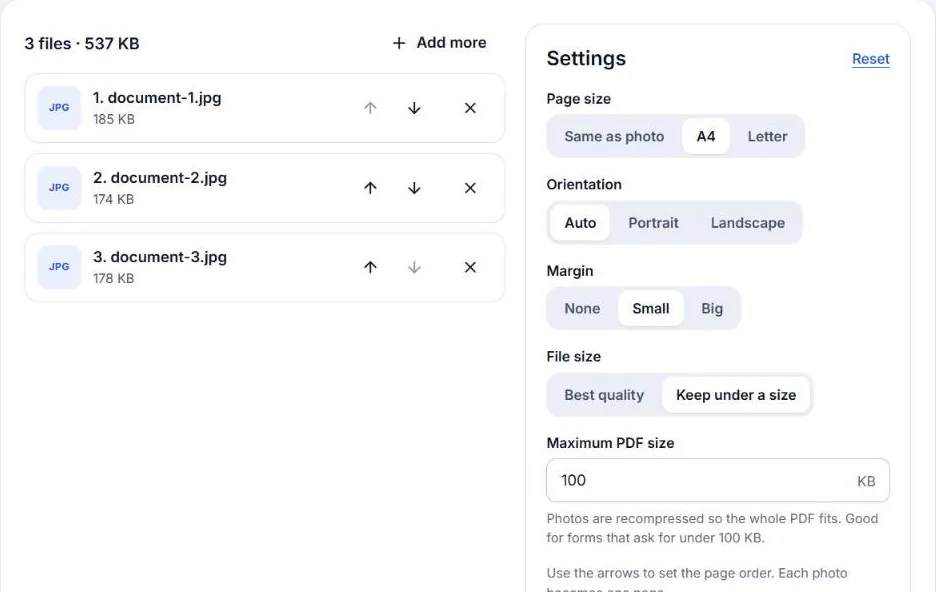
Step 2Put the pages in order with the arrows. Choose A4 for documents or Fit for photos, and turn on “Keep under a size” if a form has a limit.
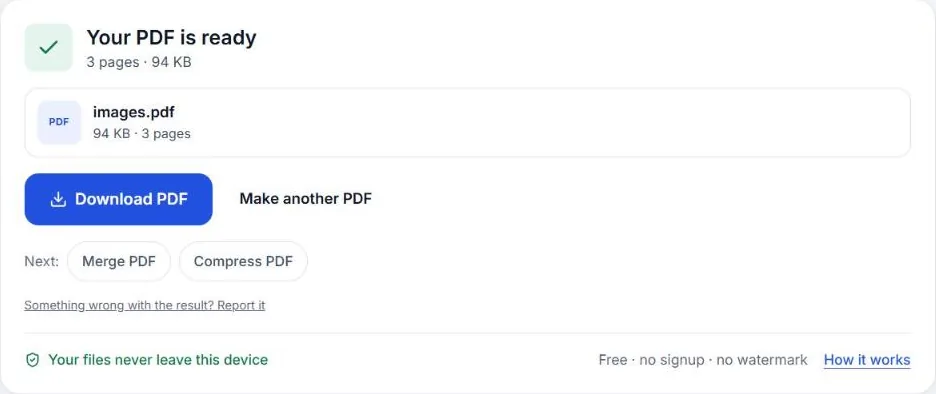
Step 3Tap Make PDF, then Download. The PDF is saved to your phone’s Downloads (Android) or Files app (iPhone).
Why make the PDF yourself instead of sending photos
Most offices, colleges and job portals want one PDF, not ten separate photos. A single PDF keeps the pages in order, opens the same on every device, and is easier to attach to an email or upload to a form. Making it on your phone takes less than a minute, and you don’t need a scanner or a computer.
The built-in ways, and where they fall short
Both phones can already turn photos into a PDF, if you know where to look:
- iPhone: in the Files app, select the photos, press and hold, and choose Create PDF. In the Photos app you can also use Share › Print, then pinch out on the preview and share the result as a PDF.
- Android: in Google Photos, open a photo, tap ⋮ › Print, and choose Save as PDF as the printer.
These work, but they have limits. You can’t easily set A4 pages or margins, you can’t control the file size, and the Google Photos route only handles one photo at a time. If a form says “one PDF, under 200 KB”, you’ll need something more.
Getting the size right for online forms
Many government and job forms limit the PDF size, often to 100 KB, 200 KB or 1 MB. Phone photos are large (2–5 MB each), so a PDF made from them can easily be 10 MB.
There are two ways to fix that:
- Set the limit while making the PDF. In JPG to PDF, turn on Keep under a size and type the limit in KB. The tool lowers the photo quality step by step and stops at the best version that fits.
- Shrink a PDF you already have. Open Compress PDF, choose Target size and type the limit.
For documents, quality matters less than you think: text stays readable at 100 KB for three or four pages.
Tips for photos of documents
- Shoot in daylight, flat on a table. Shadows and angles make text harder to read and the file bigger.
- Fill the frame with the page. Less background means sharper text at the same size.
- Crop before you convert if the photo has a lot of table or floor around the page. Use Crop image.
- iPhone photos are HEIC. JPG to PDF accepts them directly. If another app refuses them, convert first with HEIC to JPG.
Is it safe for ID cards and certificates?
Yes. JPG to PDF runs inside your browser: your photos are never uploaded to a server, so Aadhaar cards, mark sheets and bank documents stay on your phone.
When you have more than one PDF
Sometimes a form wants everything in one file: the application, your ID and your certificates. Make a PDF of each set of photos, then combine them with Merge PDF in the order the form asks for.
Common problems and quick fixes
- A page is sideways. Phones sometimes save document photos rotated. Turn them upright with Rotate image before adding them, or retake the photo holding the phone upright.
- Text looks blurry in the PDF. The size limit is too tight for the number of pages. Raise the limit, remove a page, or retake the photos closer to the paper.
- I can’t find the downloaded PDF. On Android, open the Files app and look in Downloads. On iPhone, open the Files app and check On My iPhone › Downloads (Safari’s default) or the folder you picked.
- The form says the PDF is “invalid”. Some portals reject PDFs with very large pages. Choose A4 instead of “Same as photo” and try again.
- One photo is missing. Check the file list shows every photo before you press Make PDF; you can add more with Add more without starting again.
Questions
Can I make a PDF from photos without installing an app?
Yes. JPG to PDF runs in your phone’s browser. Open the page in Chrome or Safari, choose the photos and download the PDF. Nothing is installed and nothing is uploaded.
How do I make the PDF smaller than 100 KB?
Turn on “Keep under a size” and type 100. The tool lowers the photo quality step by step until the PDF fits. Three or four document photos usually fit in 100 KB and stay readable.
Why are my pages in the wrong order?
Phones list photos by the time they were taken, not the order you tapped them. Use the up and down arrows next to each photo before you press Make PDF.
Can I add more photos to a PDF I already made?
Make a PDF of the new photos, then join the two files with Merge PDF. Merge keeps both files exactly as they are.
JPG to PDF, free and private
Photos into one PDF, under 100 KB. Runs in your browser; nothing is uploaded.